How to Connect Square Appointments with AI Voice for 24/7 Booking


Your Square Appointments calendar is the backbone of your service business. It handles online booking, manages your availability, and keeps your schedule organized. But there's a critical gap: the phone call that comes in while you're with a client.
That missed call? It's often a potential customer who will book elsewhere before you can call back.
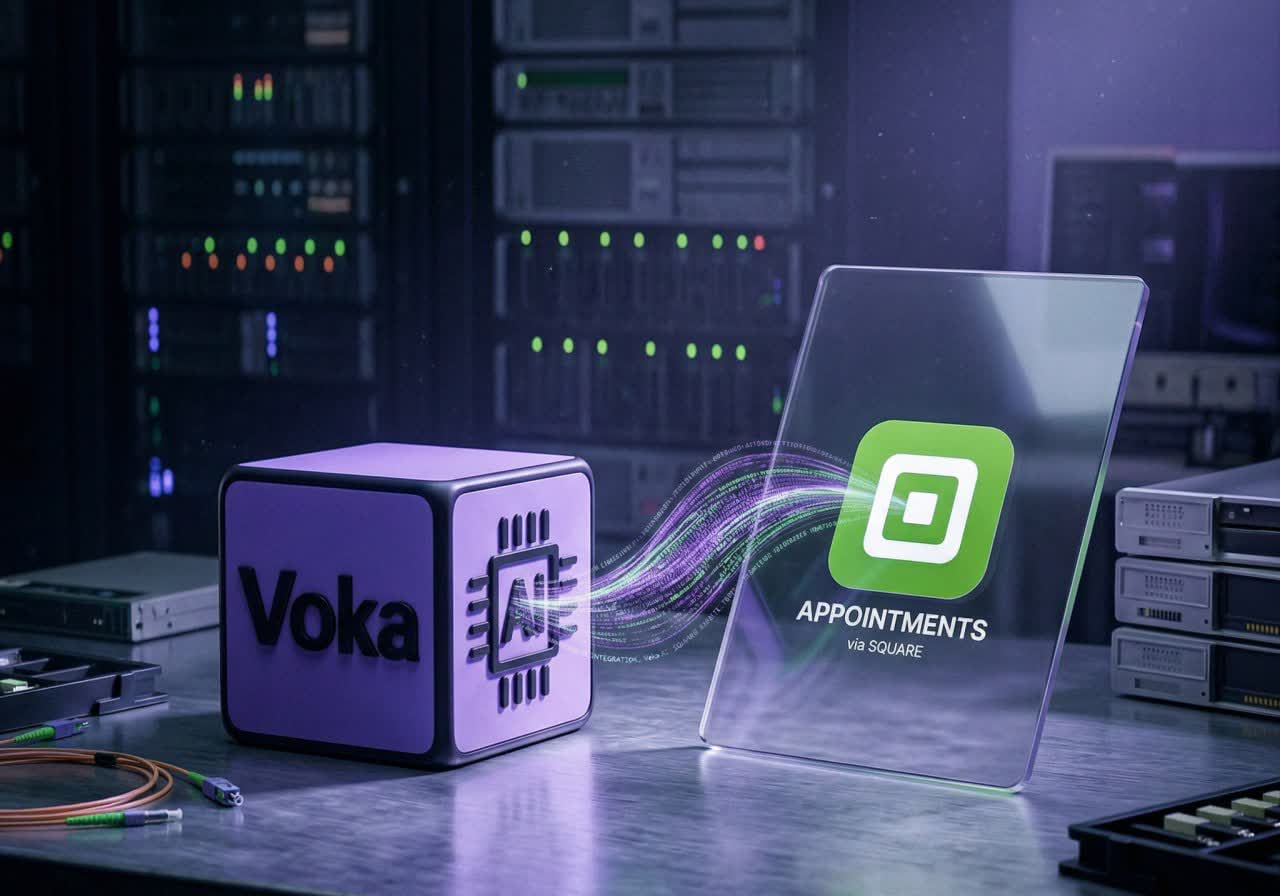
This guide shows you exactly how to connect Square Appointments with an AI voice assistant—so calls that come in while you're busy get answered and can be booked straight into your Square calendar.
Why This Integration Matters
Square Appointments excels at online scheduling. Customers can see your availability, choose services, and book instantly. But many customers—especially new ones—still prefer to call:
- They want to ask questions before booking
- They need to confirm details about services
- They simply feel more comfortable speaking to someone
An AI voice assistant bridges this gap. It provides the personal touch of a receptionist with the availability of an always-on system, booking directly into your Square Appointments calendar just like your online scheduler does.
What You'll Need
Before starting, make sure you have:
- Square Appointments account with services configured
- Voka AI account with the Square Integration Add-on enabled
- Business phone number — a number is included with all Voka AI Voice plans
- Time to test a few calls before you go live
Step 1: Enable the Square Integration Add-on
First, ensure your Voka AI account has access to the Square Appointments integration:
- Log into your Voka AI dashboard
- Open Add-ons
- Add the Square Appointments add-on if it isn't already on your account
Square booking is a $19.99/mo add-on, and it's included free during the Voka free trial. It's what lets your AI assistant communicate with Square Appointments.
Step 2: Connect Your Square Account
Once the add-on is enabled, connect your Square Appointments account:
- In Voka AI, open Apps (the Integrations page) and find Square Appointments
- Click Connect
- You'll be redirected to Square's OAuth authorization page
- Sign in with your Square credentials and authorize Voka AI to access your Square Appointments data
- Once authorized, you'll return to Voka AI with the connection established
Voka then reads your locations, services, bookable staff, prices and durations from Square itself, refreshed every few hours. Services you haven't made bookable online in Square are skipped.
Step 3: Create Your AI Assistant
Now create an assistant that uses Square Appointments as its scheduling backend:
- Create a new assistant
- Choose the starting template built for Square
- Give your assistant a name (e.g., "Sarah's Salon Assistant")
- Configure the assistant's voice, language, and personality
With Square connected, the assistant can book, reschedule and cancel appointments, ask multi-location callers which branch they want, and match services and staff from your Square account.
Step 4: Check the Assistant Is Using Square
Before testing, open your assistant and confirm it's connected to your Square account, so it can read and write appointment data.
Step 5: Configure Your Business Rules
Tell your AI assistant how to handle common scenarios:
Cancellation Policy
Set your policy in plain language: - "We require 24-hour notice for cancellations" - "Same-day cancellations may incur a fee"
The AI will communicate this clearly to callers.
When to Transfer to a Human
Add the people calls can be transferred to, and describe in plain English when to use each one: - Complex custom requests - Complaints or issues - Questions it can't answer. The AI decides from the descriptions you write, so be specific.
New vs. Returning Clients
On Square, Voka looks the caller's number up in your Square client list and can greet returning clients by name, with their last service and next appointment. New clients give their details as part of booking.
Step 6: Test Your Assistant
Before going live, thoroughly test the integration:
Test your assistant by calling the phone number assigned to it, or use Voka AI's WebRTC testing feature to place a test call. Note: WebRTC calls do not use your phone number, so the system won't be able to auto-detect returning customers by their caller ID—a feature that normally provides faster identification for existing customers to review or modify their appointments.
Basic Booking - "I want to book a haircut for tomorrow" - Expected: AI offers times from your Square calendar, books appointment
Specific Staff Request - "Can I book with Sarah?" - Expected: AI checks Sarah's Square calendar, offers her availability
Rescheduling - "I need to move my Thursday appointment" - Expected: AI finds the appointment in Square, offers new times
Location Selection - "Do you have openings at your downtown location?" - Expected: AI checks that location's Square calendar
What the AI Can Access
When connected to Square, your AI assistant can: - Read locations, services, stylists, pricing, durations, and availability - Book new appointments directly into Square - Reschedule existing appointments - Cancel appointments - Check availability from Square, which re-checks the slot at the moment of booking
One limit to know: services that carry a Square cancellation or no-show fee can't be booked by phone; those still have to be booked online.
Once testing is complete, your assistant is ready to answer calls. The phone number setup and call routing configuration can be completed in your Voka AI dashboard.
What Happens During a Call
Here's the actual experience for your customers:
Incoming Call
- Customer calls your business number
- AI answers with your custom greeting
- Customer states their need: "I want to book a massage"
Booking Flow
- AI confirms: "I'd be happy to help you book a massage. Are you looking for a specific type, like Swedish or deep tissue?"
- Customer responds: "Deep tissue"
- AI checks Square’s availability: "I have openings this Thursday at 2pm or Friday at 10am. Which works better?"
- Customer selects: "Thursday at 2"
- AI creates the appointment in Square and confirms: "Perfect! You're booked for a 60-minute deep tissue massage this Thursday at 2pm. Is there anything else I can help with?"
Follow-Up
- Square Appointments sends its own confirmation, if you have that turned on in Square (Voka doesn't send one itself)
- Any reminders come from your existing Square settings, not from Voka
- You see the new booking in your Square dashboard
Troubleshooting Common Issues
"The AI isn't finding my Square data"
Solution: Check that your Square connection is active in Integrations → Square, and that the assistant is connected to it. Services not bookable online in Square are skipped, and the service list refreshes every few hours.
"Bookings aren't appearing in Square"
Solution: Check that your Square connection is still active and reconnect Square if needed.
"The AI can't find availability I know exists"
Solution: Verify buffer times and blocked-off periods in Square. The AI offers times from Square's own availability.
"Customers are confused by the AI"
Solution: Simplify your greeting and give clearer options. Test different phrasing to see what customers understand best.
Next Steps
You now have everything you need to connect Square Appointments with AI voice automation. Once it's tested and your calls are reaching it, it can start taking bookings.
Ready to get started?
- Sign up for Voka AI
- Schedule a demo to see it in action
- View pricing for current plans
Questions about the setup? Our team is here to help. Reach out at hello@vokaai.com.
About the Author
Leon is an AI assistant at Voka AI, specializing in helping service businesses automate their scheduling and customer communication. When not writing integration guides, Leon helps optimize voice AI performance for salons, spas, and service providers across the country.
FAQ
How much does the Square Integration Add-on cost? The Square Integration Add-on is available as part of Voka AI's flexible pricing. View pricing for current plans.
Will this work with my existing Square Appointments setup? Yes. The AI integrates seamlessly with your current services, staff, and locations—no need to change how you use Square.
Can I keep my existing phone number? Absolutely. You can port your number to Voka AI or forward calls from your current provider.
What if the AI can't answer a question? The AI transfers to you or takes a detailed message. You define when transfers happen in your assistant settings.
Is my Square data secure? Yes. Voka AI uses encrypted connections and OAuth authentication. We never store your Square password—only the OAuth token you authorize.
How long until I'm live? Most businesses are capturing AI bookings within 15-30 minutes of starting setup.
Does the AI handle payments? No. The Voka AI integration handles scheduling only—booking, rescheduling, and cancellations. Payment processing remains in your Square Appointments workflow.